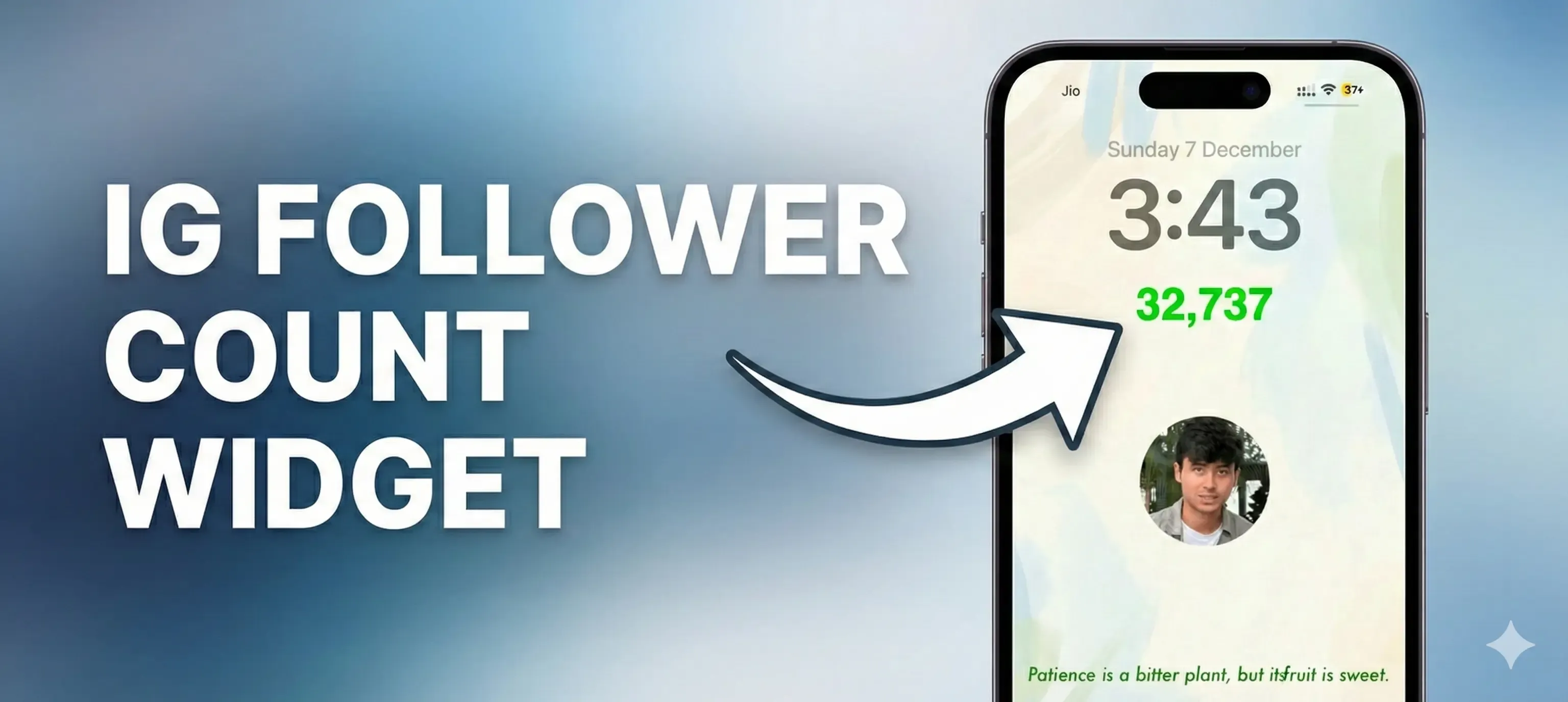
Have you ever noticed that Instagram shows your follower count as “32K” instead of the actual number? If you’re like me and want to see the exact count, I built an iPhone shortcut that solves this problem in a fun way.
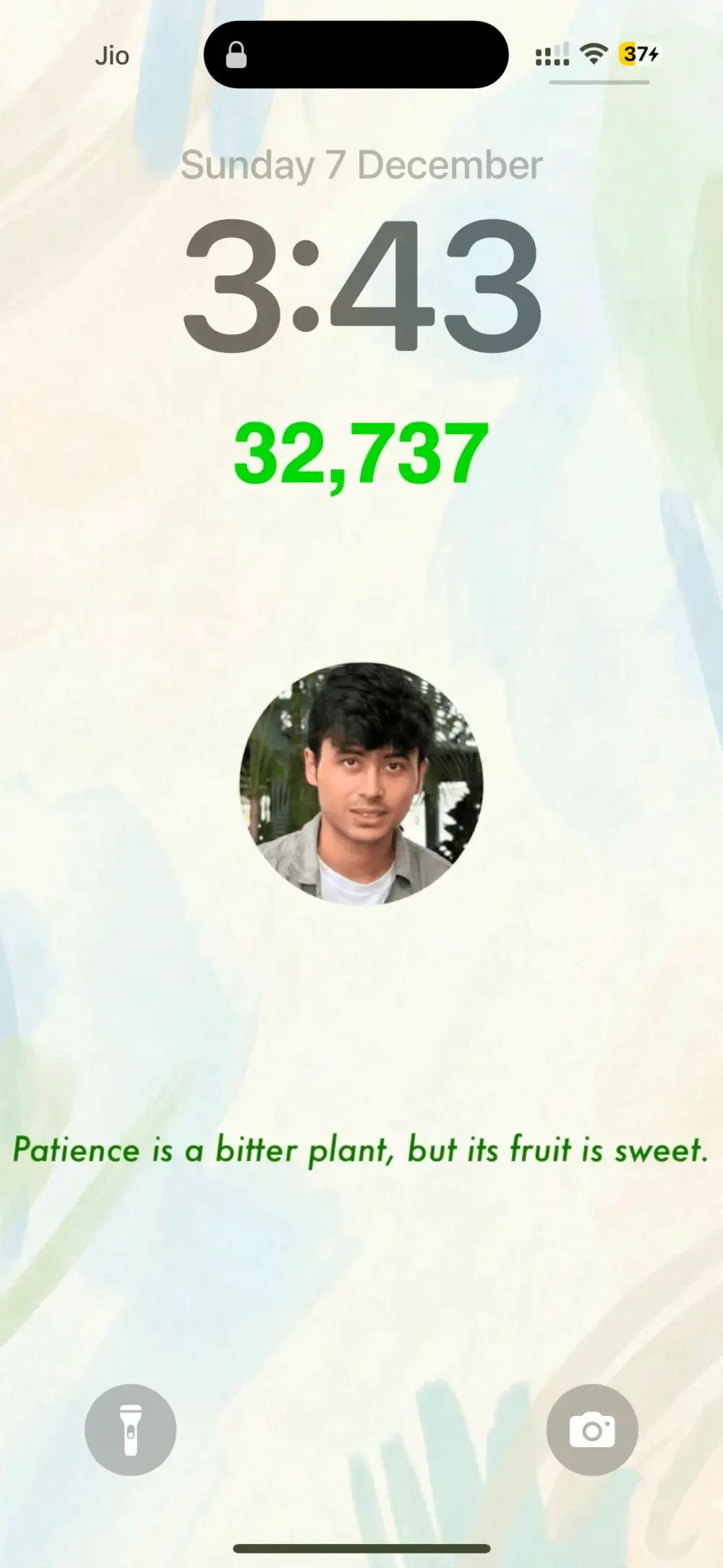
This shortcut automatically fetches your real Instagram follower count and displays it right on your iPhone lock screen wallpaper. And the best part? It updates automatically every 10 minutes so you always see your current numbers.
How It Works
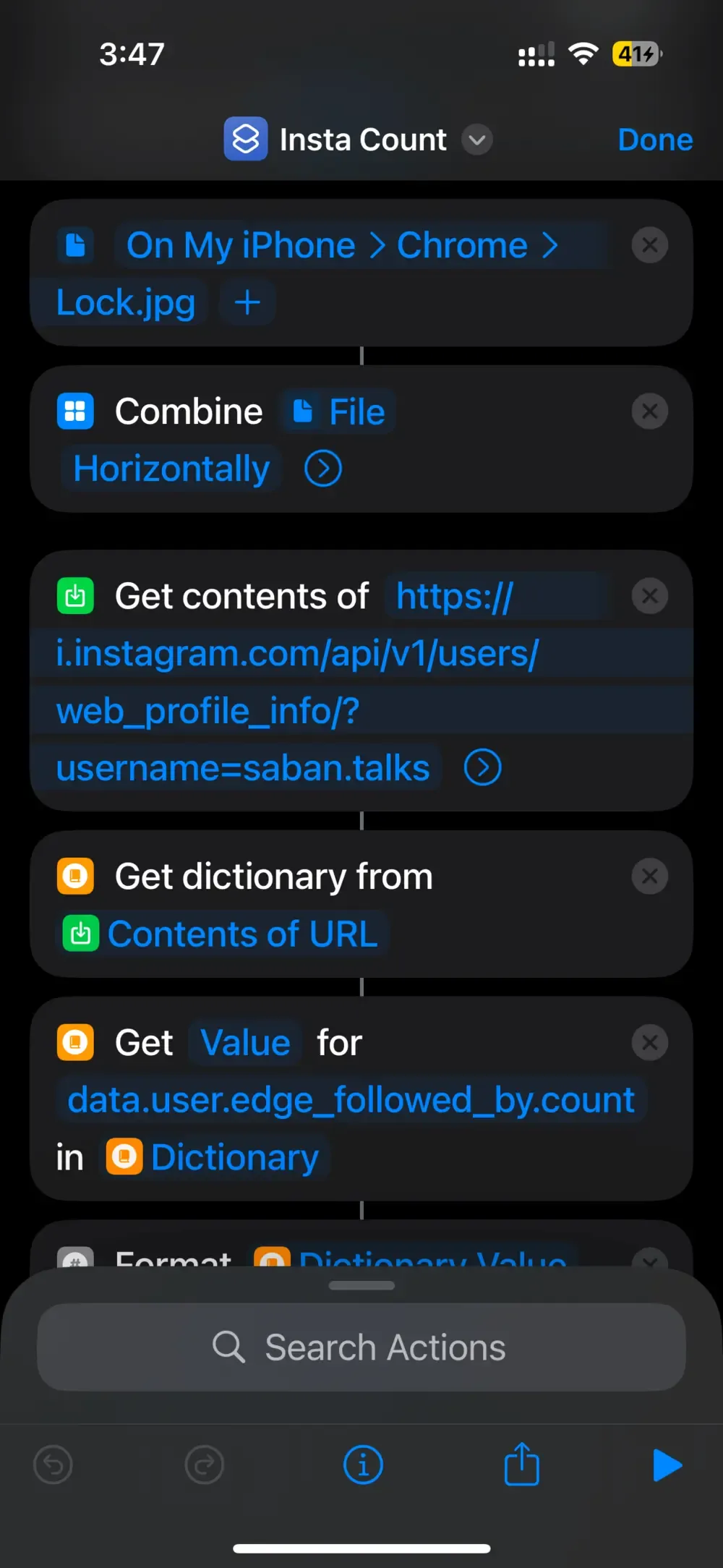
The shortcut uses Instagram’s web API to fetch your exact follower count and creates a custom wallpaper that displays this number. It then sets this as your lock screen background automatically.
To keep the count updated, the shortcut works with iPhone’s alarm automation feature. Every time a specific alarm triggers, it fetches the latest count, updates the wallpaper, and creates a new alarm for 10 minutes later.
Download the Shortcut
You can download the shortcut here: Download Instagram Count Shortcut
After downloading, follow the steps below to customize it and make it work for you.
How to Set It Up
Step 1: Get Your Background Image Ready
First, you need a background image where the follower count will appear. Keep the image size small to avoid memory issues that can break the shortcut. Save this image in your iPhone Files app.
Step 2: Create the Shortcut
The shortcut needs to do a few things:
- Fetch your follower count from Instagram’s API
- Combine your background image with the count
- Set it as your lock screen wallpaper
- Delete the old alarm
- Create a new alarm for 10 minutes later
The API URL you’ll use is: https://i.instagram.com/api/v1/users/web_profile_info/?username=YOUR_USERNAME
Make sure to replace YOUR_USERNAME with your actual Instagram username. For example, if your username is john.doe, the URL would be: https://i.instagram.com/api/v1/users/web_profile_info/?username=john.doe
Step 3: Set Up the Automation
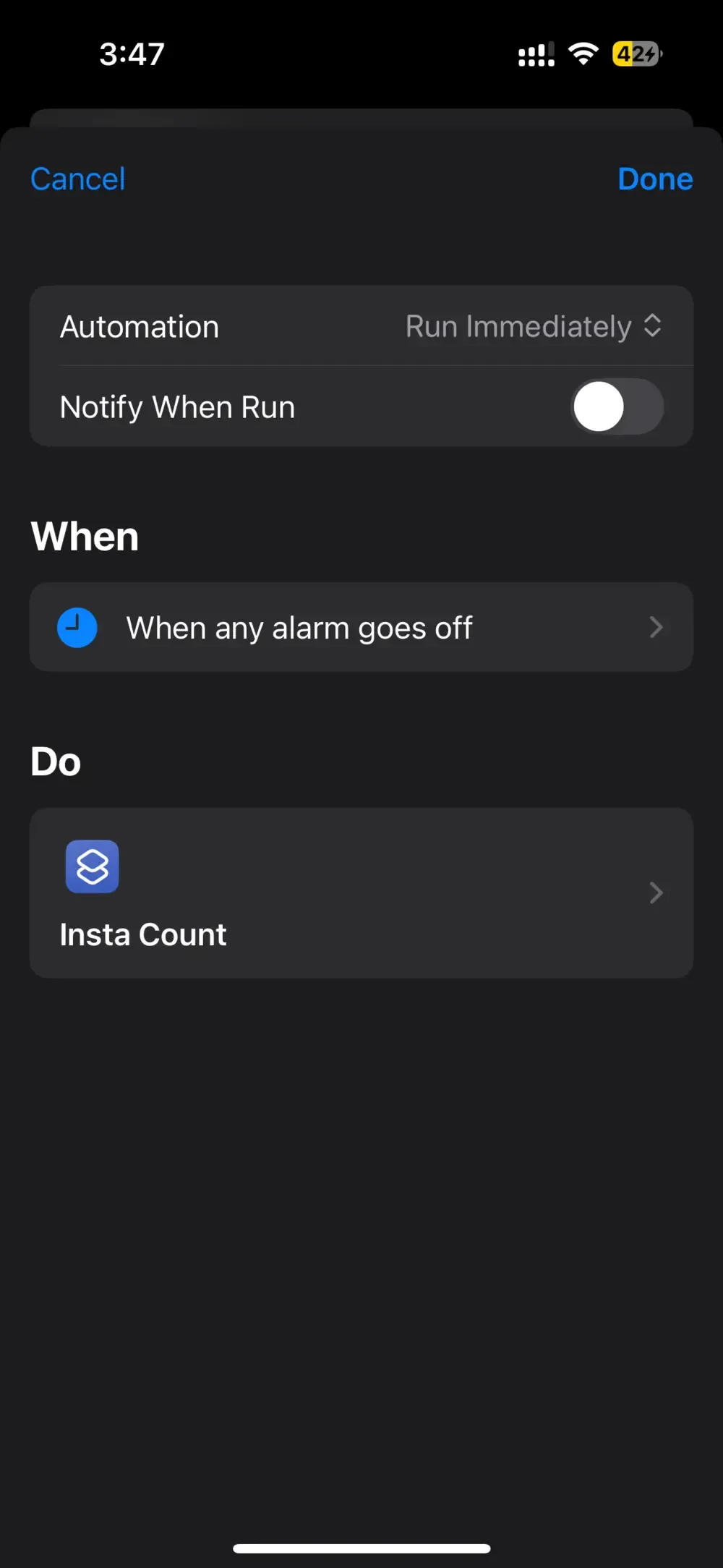
Now comes the clever part. You’ll set up an automation that runs whenever an alarm with a specific label goes off:
- Open the Shortcuts app
- Go to the Automation tab
- Create a new automation
- Choose “When any alarm goes off”
- Set it to trigger when an alarm labeled “Lock” goes off
- Choose your Instagram Count shortcut to run
- Turn off “Notify When Run” for a seamless experience
Step 4: Create Your First Alarm
Create an initial alarm with the label “Lock” to trigger everything for the first time. Set the alarm sound to “None” so your phone doesn’t actually ring every 10 minutes.
Step 5: Enable Delete Permission
For the shortcut to delete old alarms and avoid cluttering your clock app, you need to:
- Go to iPhone Settings
- Find Apps > Shortcuts
- Enable “Allow Deleting Alarms”
Without this permission, you’ll end up with hundreds of alarms over time.
Important Things to Remember
- The first time you run the shortcut, it might ask you to connect to Chrome. Just allow it to proceed
- The shortcut creates a new alarm every 10 minutes and deletes the previous one to keep things clean
- Set your alarm sound to “None” so it doesn’t actually ring
- Keep your background image small in file size to prevent memory errors
- Save your background image in the Files app and select it in the shortcut
- The shortcut needs the “Allow Deleting Alarms” permission enabled in Settings
- If the wallpaper doesn’t update, you might need to change the variable name from “wallpaper2” to something else in the “Set Wallpaper” action
5 Creative Ways to Use This
While I made this for Instagram followers, you can adapt this shortcut for many other use cases:
1. Daily Step Counter
Connect to the Health app and display your daily steps on your lock screen. This can be a great motivator to hit your 10,000 steps goal every day.
2. Calorie Tracking
If you’re watching your diet, display your daily calorie intake or remaining calories right on your lock screen. You can pull this data from apps like MyFitnessPal.
3. Habit Tracker
Track your daily habits like water intake, meditation minutes, or workout streak days. Seeing the number constantly can help keep you accountable.
4. YouTube Subscriber Count
If you’re a content creator on YouTube, display your subscriber count instead. Watch it grow in real-time as you release new content.
5. Twitter Follower Count
Similar to Instagram, display your Twitter follower count. This works great if you’re actively building your presence on the platform.
Need Help?
If you run into any issues setting up this shortcut or have questions, feel free to DM me on Instagram: @saban.talks
The shortcut might seem complicated at first, but once you set it up, it runs completely automatically in the background. It’s a fun way to stay updated with your Instagram growth without constantly opening the app.
